Sunday, 10 April 2016

How to Check If Your Android Device Is Working Properly?

How to Check If Your Android Device Is Working Properly?


There are a lot of components, which make to functioning your smartphone, and if one of those is not working properly, it may throw off your whole effort.


But how do you pinpoint exactly 'what’s wrong with your device?'. May be the accelerometer seems a bit off when you play racing games, or when browsing the web on Wi-Fi / mobile data, you don’t feel the speed as fast as it should. 

Whatever the problem is, there are apps that can help you to figure out the wrong side and how to solve it. Even if you’re not having a specific problem, it might be good, as a routine work, to run through a little check-up on your phone to ensure everything is running smoothly.


1. Device Assist
The App, Device Assist, is from the Play Store, which does a lot more than check for issues. If you're a beginner, it will give tips and advices on how to take advantages to your Android device; but if you've Nexus or Moto devices, you should have to download the APK and install it manually.


When you boot up the App, it asks if you want Basic, Intermediate, or Advanced mode, and this can be changed, later, from the Settings.


Beginners will be told how to turn Wi-Fi on / off, or create folders on their home-screen (pictured above), whereas advanced users will learn about more obscure features like finding or remote locking your device (pictured below).


Navigation is simple, just scroll through the list of cards that Google displays for you. At any time, you can search for a particular issue in the top right, or tap the three-dot icon to see previous actions you’ve taken, change your settings, or view a range of information about your device.

You can even check the Wi-Fi or data speeds, and Google will tell you the results in plain English so that you actually understand the results.
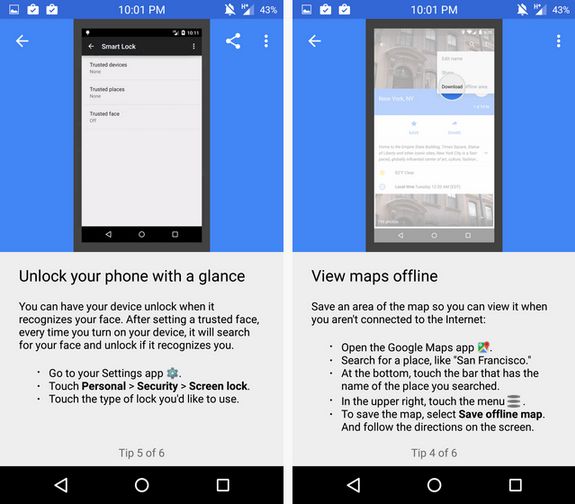

Since the App is a part of Google’s services, it provides hints for other Google Apps too, like little tricks for Google Maps. All the tips are explained in easy-to-understand instructions and visual explanations in GIF form, if necessary.


So, this App is simple and offers good solutions, if your smartphone facing problems.


2. Test Your Android

Have you any idea on this App Test Your Android, which is also available in Google's Play Store and it tests your Android device, too. This powerful App having an attractive colorful interface that allows you to test everything from your screen's multi-touch capabilities to your built-in compass. You can also slide to Information tab to view your device information like Device Assist App.

A small ad can be seen at the bottom of this App while you use it, but it's easily ignored.


3. Phone Doctor Plus 
As the name imply, the App PhoneDoctorPlus diagnostics as a doctor for your phone. It allows you to run through all sorts of 'check-ups' to ensure that everything works properly.


As your expectations, this App allows to check-up the health and status of various aspects of your device such as CPU, memory, compass, battery and etc., When you completed the various tests, the progress bars will be filled-up.


The date on which you're tested the each part of device will also be noted. So, you always have a record for different aspects.

4. Z Device Test
This App, z device test is not the prettiest one, but it is so functional. It uses big 3D skeuomorphic icons with tiny text beneath them.


However, it provides very specific and detailed information about everything from accelerometer to GPS coordinates. It shows a big green check mark on sensors and features that your phone equipped, and a big red X mark through any that your phone is lacking.
Banner ads run along the bottom of the screen, and sometimes interrupting by full-screen. But if you need the kind of detailed information this app can supply, those might be worthful.

Fixing Pixels Of 
Defective or Dead
Above said Apps will help you to detect the problems and solve! But, if your device has a defective or dead pixel, they doesn't do anything in fixing it. Some stuck pixels are hardware related defects, and those can’t be fixed by any App, but others just need to cycle through their three options (red, green, and blue) enough times to refresh them.


If you find that your screen has a stuck pixel (or more) then there might be a way to revive it.


5. Dead Pixel Detector & Fixer
If you want to try through the App route, then you could use Dead Pixel Detector & Fixer, which gives you different color backgrounds to identify dead pixels, then shuffles the whole screen rapidly through colors to refresh any affected areas.
The best solution to solve this, is not an App, but through a website: JScreenFix, which works on Android or any other device with an LCD panel. It displays a pure black screen so that you can identify the stuck pixel, then it offers a little square that you can place over the area that quickly shuffles through colors. Developers suggest leaving it running for about 10 minutes.


What App Do You Use?

There’s a flurry of Apps available on Play Store for checking the health of your Android devices; but above said were the best and personally, we suggest Google's Device Assist to be the best option for most people, as others will need the detailed readouts, like Z Device Test.

Monday, 4 April 2016

How To Clean And Sanitize Your Smartphone

How To Clean And Sanitize Your Smartphone

Years ago, the London School of Hygiene and Tropical Medicine found that 92 percent of phones tested had bacteria on them. It sounds frightening, but that’s par for the course for being a bunch of evolved animals with gadgets in hand. That’s also why we sought to find out how the heck to properly clean a smartphone. 

Here’s a couple of tips we learned along the way.


Make a habit of wiping it down!


This is an obvious thing to do but it bears repeating: you should wipe down your phone as often as you can. We love pre-moistened anti-bacterial wipes like Wireless Wipes or these stylish screen cleansing towelettes from Sephora, but you can also buy full size screen cleaning and microfiber phone cleaning kits to keep at home. 


Alternatively, you can make your own screen cleaning solution from scratch. All you need is a small spray bottle, 8 ounces of 70 percent rubbing alcohol, and 8 ounces of distilled water. (Make sure that it’s distilled water. Tap water can leave behind a residue.) A 50-50 mixture of white vinegar and distilled water also works, if you want to keep things organic and don't mind the odor.


Bust out the Q-tips and toothpicks!

Those tiny crevices in between the glass covering the display and the rest of the chassis store lots of gunk. My friend’s favorite thing to do on a Sunday afternoon is go through and pick at them with a plain wooden toothpick. It’s pretty disgusting to see what he excavates from the cracks in his smartphone, but he’s a contractor and that’s the only way to ensure his device stays relatively clean.


Try this yourself and, when you’ve finished, run through the cracks again with a dry cotton swab to clean out any residual dust. For tougher jobs, you can take a fresh cotton swab, dip it in cleaning solution and swirl it around on the camera lens and other parts of the smartphone chassis. Be thorough, but also be gentle; you don’t want to accidentally scratch anything.


Consider investing in a UV sanitizer!

If you’re really a germaphobe, you can invest in a device that kills off germs with a UV light. Try out CellBlaster’s Universal UV Cell Phone Sanitizer, or the Easycare Portable Multiuse UV Sterilizer. But honestly, killing germs with UV light is sort of hit-and-miss and you still don't get the crud off.


Don’t forget to wipe down your headphones, too!

If you opted for the UV blaster mentioned above, you can simply drop your earbuds in and take care of business that way every few days. If not, you can wipe each bud down with a soft cloth dampened with a bit of mild dish soap and water.


Headphones are a bit trickier: you’ll want to use same dish soap solution to wipe them down in their entirety. If the headphones include silicon covers, you can remove those and clean them separately with a toothbrush. Anything more serious, and you’ll want to dip a cotton swap in rubbing alcohol and give it a thorough once-over. Then allow the headphones to dry completely before using them again.

Thursday, 31 March 2016

5 Add-Ons: Make Facebook Way Better

5 Add-Ons: Make Facebook Way Better


The tools, indicated here, help you to organize your News Feed and make them easier to view content.

Although Facebook does its best to make the News Feed as relevant and useful as possible; it can still become a cluttered place. With more than one billion people using Facebook on average each day, it can be difficult to parse through all of the different types of content that pop up in your feed.

However, adding certain extensions to your Web browser can make Facebook’s website more customizable and easier to digest. Extensions are almost like apps that run in your browser to add new functions and features that wouldn’t otherwise exist. They’re developed by third-party developers, which means they aren’t officially affiliated with Facebook, and can be disabled at any time.

Here’s a look at the five Facebook-themed extensions for Google’s Chrome browser that we found to be the most useful.

1. Photo Zoom for Facebook
As its name implies, Photo Zoom makes it easier to view photos as you’re browsing the News Feed. When Photo Zoom is enabled, you can enlarge a picture simply by hovering over it with your mouse pointer. This allows you to expand the photos you’re interested in without being taken out of the News Feed.

2. Facebook Secret Emoticons
Facebook Secret Emoticons gives you a wider selection of emoticons to use when posting a status update. Facebook already allows you to tag status updates with a emotions and feelings (i.e. excited, happy, annoyed, sick, etc.), but the extension adds an extra set of symbols to choose from. It’s also a little quicker to access than scrolling through Facebook’s feelings menu.

A subtle smiley face icon will appear when the extension is turned on; clicking it launches a menu that includes everything from a Pac Man-themed smiley to Facebook’s classic thumbs-up icon. The drawback is that you have to navigate to the developer’s website to access symbols in different categories, such as animals and places.
 
3. Social Fixer for Facebook
Social Fixer is a tool for those looking to get more customization out of Facebook. It lets you tweak nearly every aspect of Facebook, from the way posts look in your News Feed to how notifications appear. 

For instance, you can choose to enable or disable the photo viewer from popping up when you click on an image, make it so that tapping “Enter” starts a new line instead of publishing a comment, and hide duplicate stories in the News Feed among other things.

4. Facebook Unseen
Read receipts can be both helpful and hurtful. While it’s useful to know if a friend has seen your last message, you run the risk of offending a recipient if you don’t respond in a timely manner. Facebook Unseen gives you some control over this by blocking read receipts in Chrome. When the extension is enabled in Chrome, the friend you’re chatting with won’t be notified when you read their most recent message.

5. Facebook Flat — New Design and AdBlock
If Facebook is too messy for your liking, Facebook Flat offers a stripped down alternative. Turning the extension on removes ads and cleans up the lefthand column by consolidating things like apps and groups into subcategories. It’s a slick interface that focuses on Facebook’s core features.

Friday, 25 March 2016

5 Ideas To Save Your Printer Ink

5 Ideas To Save Your Printer Ink


The great nuisances of digital life, which irritate consumers, is the high price of printer ink. If you see black clouds rolled-in, just assume that it's time to drive to the store, open your wallet, and purchase a new round of color cartridges.


The gloom is understandable and hard to justify in paying so dearly for the privilege of printing out a grocery store coupon. And, while third-party printer ink cartridges may promise savings; but they often get rejected by printers that designed to sniff out off-brand intruders.

So, how do we save on printer ink? 
Here's a few ideas.

1. Change the Font
Two years ago, a 14 year old student from Pittsburgh created a stir on CNN by announcing that the U.S. government could save $234 million a year by printing its documents in Garamond instead of Times New Roman. While his discovery was eventually discredited—due to a point size issue unique to Garamond—the kid's instincts were right. So, the choice of typeface can make a difference in ink consumption.

When Consumer Reports tested fonts several years ago, we got 27 percent more mileage when using Times New Roman rather than Arial, a default font in many browsers. Calibri and Century Gothic both outperformed Arial, as well. 

An option called ecofont is designed specifically for frugality, which removes enough printer ink from its characters to stay legible and saving money. But you have to pay for it, a lifetime-license starts at $19.95.

2. Print in Black & White
The point of wasting precious ink is to print colorful ads or logos; but changing printer's default settings to black & white (also known as gray-scale), you can spare the color cartridges.

3. Strip Out the Stuff You Don't Want
Many websites let you select printer-friendly, which automatically remove color ink-sucking ads and images, leaving you with nothing but text. If the site you're reading doesn't offer that option, a service like Instapaper, Clean Print, or Print Friendly can help you reformat the story yourself, saving on ink and paper. Some even let you skip the printing process altogether and save the article for future reading on a laptop, tablet, or smartphone.

4. Upgrade Your Printer
Printers vary quite a bit in how much ink they use, and this is one of the factors that Consumer Reports tests in the lab. Laser printers are known for their low cost-per-page (around 2 cents, usually) and fast print speeds—a particularly strong performer in our Ratings is the Dell S2825cdn, which costs $280, and $0.02/page to print.

Inkjets are catching up on per-page printing costs, if not speed: Consider the HP Officejet Pro 8610, an all-in-one model that costs $100 upfront, and prints at a cost of just 0.017 per page.

Then there’s the Epson EcoTank line of printers, which have a novel take on the home printer, eschewing the classic ink cartridge for ink bottles and reservoirs. The bottles cost $12.99 each, and you need four of them. 


The printers have a pricey upfront costs—the Epson Expression ET-2550 costs $299. But the per-page printing cost is tiny, roughly an order of magnitude lower than some other printers at just $0.003. Do all that arithmetic, and you'll be saving money after about three years. According to Epson, a set of Ecotank ink bottles is equivalent to around 20 standard-capacity printer ink cartridges.

5. Use Draft Mode
If you're rarely using the printer for dissertation projects, wedding invitations, or quarterly earnings reports then the device spits out a legible soup recipe! When the end result doesn't have to be high quality, use the draft mode in your printer settings. This will not only use less ink, but also print faster.

Sunday, 14 February 2016

FaceBook: New Like Button Options Are 'In The Next Few Weeks'

FaceBook: New Like Button Options Are 'In The Next Few Weeks'


Facebook users are crying out for a "Dislike" button, since, the 'Like' button was introduced. They aren't going to get it, but Facebook announced last year that it's been working on a way to make the Like button more expressive: it's adding in a number of other options — love, haha, wow, sad, and angry — which you'll be able to press in addition to Like. After testing the new options last year, Facebook finally plans to roll them out in the US. 
They'll be arriving "in the next few weeks," according to what the company tells Bloomberg Businessweek.


The new options might not be noticeable to Facebook users right away. On mobile, they'll be hidden within the Like button: you'll have to press and hold Like for a moment before the new options — which Facebook calls "reactions" — pop up. From there, you can select one of the five new options, each of which is represented by a cute animated image. There was originally going to be a sixth option — "yay" — but Bloomberg says that Facebook removed it at some point over the past few months after determining that it wasn't "universally understood." You can read more about how Facebook created its new reactions feature in our story from when it was first announced. Bloomberg also has a nice profile on one of Facebook's leaders that discusses the new feature's development.

Saturday, 13 February 2016

The Best Productivity App! But We Just Don't Know It Yet!!

The Best Productivity App! But We Just Don't Know It Yet!!


A zillion productivity Apps are available and those help us to organizing our day, emailing more efficient way, remembering our grocery list and a lot of them are good; but let's be real: We won't ever use them!
Yes, our smartphones already come armed with basically everything you need to become a more productive human.
 
Whether you have an Android device or an iPhone, there's a good chance to use these things already without realizing their full potential. This article guides you to unlock the most productive feature on your smartphone, and no downloads are necessary.
Android
If you're not using "Google Now" App; and it's time to start. Hopefully, it's pre-installed on your phone; but you can also download the App, if you're missing it. (The same App is also available for iOS, though we'll explain later). 
The App can read your text messages for you, take down your reminders and deliver smart updates such as bad weather, traffics, flights, packages that you're expecting and so on.
The biggest thing we use, here is, for: REMINDERS. The way, we use, seems really stupid, but believe this function will be an enjoyable experience. Just pull up 'Google Now' App - either tapping it, or saying a voice command (on certain phones), and press down the 'home' button - then say "Okay Google." This will prompt the App to listen of your command.

Now, you can make better choices with simple reminders as follow:

  • "Remind me to buy bubble wrap at Kmart"
And if you've allowed Google to track your phone's location, then Google gives a buzz when you pass the store. It's really a pretty awesome feature!
  • "Remind me to pre-heat the oven when I get home"
Yes, it's also a kind of weird; but you should tell Google your home address to get specific location then you got reminders when you reach home after work!
  • "Remind me to call Grandma this weekend" She loves you!
You'll absolutely look like a lunatic, when you're saying all of these things on your phone; but just whisper them very quietly into your device's microphone. The App will hear you just fine.


Above said reminders are just one very basic use for the App. But there are a slew of functions and other voice commands that are so useful. For example: you can ask it how to say "help me" in Spanish. It's pretty great!

There is also a major caveat: You have to be ready with turning your personal data over to Google. To get the most out of Google Now, you have to let it automatically dig through your Gmail and search for bits of information. Just decide, if that is worth for you, though you can always monitored what data Google is collecting via your activity page.

iOS

While you can download Google's App for many of the above features on your iPhone, and remember that the whole point is to avoid superfluous things you're not likely to use on your device. Think of your home screen as a beautiful zen garden of vital programs, if you must. We recommend trying to get more out of Siri.

The famed digital assistant can understand a lot of the same voice commands as the Google Now App. It can also remind you to pre-heat the oven when you get home - if your iPhone doesn't know your address, you'll be prompted to type it in. 

Like Google Now, it understand a ton of other voice commands that can increase your efficiency. Want to know what song is playing? Don't ask the human DJ or Google the lyrics. Just ask Siri and let it take a listen.


The big takeaway here is that you can probably get creative with the stuff that's already built into your smartphones to improve your life and avoid clogging your storage with other apps you don't really need. 
If you really must try other apps, there are a ton out there: for Android and iOS.

Friday, 25 December 2015

An Introduction: Windows10 & Microsoft EDGE

An Introduction: Windows10 & Microsoft EDGE

Microsoft Edge, a new web browser, is introduced by Microsoft on its Windows-10 OS as a replacement to Internet Explorer. Edge's interface has been rewritten with the old interface of Internet Explorer with all of its clutters. Microsoft claims Edge is designed to be a lightweight web browser with a layout engine built around web standards. Microsoft continues its effort in adding more features to its new browser and expecting Edge will be more competitive with Chrome and Firefox.

Edge includes a software integration Cortana, an intelligent personal assistant, which only be worked after enabling system wide. To do system wide, click Cortana search bar from Windows Task-bar then provide your name to setting up Cortana. You may also check, if this feature is enabled, by click (or tap) More actions button in Edge, then Select > View advanced settings and ensure Have Cortana assist me in Microsoft Edge option is enabled.
  
Cortana's features include being able to set reminders, recognize natural voice without the user having to input a predefined series of commands, and answer questions using information from Bing (like current weather or traffic conditions, sports scores, and biographies). To use Cortana, just type a question into the location bar at the top of the Edge window or on the New tab page. 
For example, you could type “weather in [city]”, “how old is [famous person]” or “when is [holiday] [year]”. Cortana offers quick answers to your questions. 

An integrated sharing option is included on Edge browser, with a Share button on its toolbar. Tap Share button, which opens the system Share panel. You can extend the list here and share to more services by installing the appropriate Apps from the Windows Store.  

For example, if you want to share on Facebook, install the Facebook App. If you want to share on Twitter, install the Twitter App. This provides you with an easy way of sharing web pages without any browser extensions, just like you would do on Android or Apple’s iOS.
You can also tap the title of the page in the Share panel and choose to share a screenshot of the current web page rather than a link to it.
  
Edge includes a reading view functionality that strips the clutter from articles you find on the web and makes them more easily readable. To activate this function, just find an article on the web and click or tap the reading view icon, which looks like a open book, in the address bar. 

Edge includes a reading list feature, too, which allows to save the articles you want to read later, without cluttering your favorites list. To do, just click or tap the star icon on the address bar then select Reading list heading then add the page to your reading list.
To Access your reading list, just click or tap Hub button and select Reading List category. There you will see the pages you saved to read later, that stored separately from your normal favorite web pages.

Edge includes web page annotation, a part of tools, to marking-up a web page to drawing on, highlighting, erasing, add notes and copy individual parts of a web page. Tap Make a Web Note button, the one between Hub and Share buttons on the toolbar, to start marking-up a web page.   
The Save button allows you to save the note to Microsoft OneNote, your favorites or your reading list. You can also use Share button to share your marked up note. 

Edge still has many more features that you'd expect to find in modern browsers. They are easy to find and much of the clutter from Internet Explorer.
  • Private Browsing: Click More actions from the toolbar and select New InPrivate window to open a private-browsing mode window. In this mode, your browser history data won’t be saved.
  • Pin to Start: Edge allows you to open the menu and select Pin to Start to pin the current web page to the Start menu or Start screen as a tile, allowing you to open it quickly. Click or tap the tile will open the web page in Edge, not its own browser window.


  • Open with Internet Explorer: If you do need to open a web page with Internet Explorer, you can just tap More actions button and select Open with Internet Explorer. Internet Explorer is also hidden in the All Apps menu under the “Windows Accessories” folder. For example, you may need to do this if you need to use a legacy web app that requires a browser plug-in like Java or Silverlight.
  • Themes: Like many other modern browsers, Edge include light and dark themes and its default theme is light. To change it, open More actions and select Settings then Choose a theme as Dark.


  • Disable Flash: Edge includes an integrated Flash Player, just as Google Chrome does. This is the only browser plug-in that works in Microsoft Edge. For security reasons, you can disable it by opening More actions > Settings > Advanced settings (View advanced settings), then slide Use Adobe Flash Player to Off.
  • Search Engine: Edge uses Bing as it's default search engine. But it can be changed to any other search engine, if you want, as Edge supports OpenSearch technology. To change Edge's default search engine: Enter the search engine’s website then browse to it. Now go More actions > Settings and then scroll down to select View advanced settings. In the list under Search in the address bar with, choose Add new. Select the website and then select Add as default.


    Edge's interface can also be customized in a variety of other ways through its Setting menu. For example, you can enable a Home button to quickly take you back to your preferred home page. You could activate the “Show the favorites bar” setting to get an always-present toolbar for easier access to your favorite web pages.  

    You can also configure which web pages Edge opens when you launch it, and what exactly appears when you open a New tab page. For example, you can make the New tab page largely blank without the “suggested content.”