Showing posts with label Browsers. Show all posts

Monday, 26 May 2014

What's Cache File? Is It Make Your Browsing Faster?

What's Cache File? Is It Make Your Browsing Faster?  

Caching is a storage mechanism for web documents, such as HTML pages and images, to reduce the usage of  bandwidth, server load, and perceived lag.  

Browser creates cache for some reason and caches are not the browsing history but it contains copy of images, Java Script files and etc., for the visited websites and stored on hard drives. The cache is a place where the browser stores copies of these files, and it doesn’t have to be downloaded again when you visit the same web page, next time. When revisiting the same websites, the caches will be retrieved from hard drive(s) and speeding up the browser to open the web page and saving download bandwidth as well.
So, browser caches are good for our browsing experiences and if you erase the caches, regularly, then the system just slowing down your web browsing while the browser rebuilds the caches, again. Browsers also limit the amount of data that stored in cache; so, the browser will automatically purge the old data and keep the cache size in control and every browser has it's own cache files.

As mentioned earlier that the cache took some hard disk space and when you use a tool to clean some data like history, then the tool could able to remove the browser caches, too. So, when using such a tool, for example: CCleaner, you should have to un-check Cache option to prevent from clearing the browser's cache. If you're using CCleaner or a similar tool to wipe-out some unwanted files, left by certain programs, then keep in mind to un-check the option of Cache; so, the tool remembers your preferred setting in the future.

However, when using FireFox browser, you can erase browsing and download history, cookies and even other data without erasing caches. You've to remove tick mark from cache box, then caches wouldn't be erased. And you may also erase the browsing and download history, cookies and even caches for only a small period of time, like past hour. This will helpful, when you're using other peoples system for an hour or more, which wipes away the tracks of your browsing without clearing the entire caches. 

To get this option: History > Clear Recent History .... then choose your appropriate option from Time range to clear.

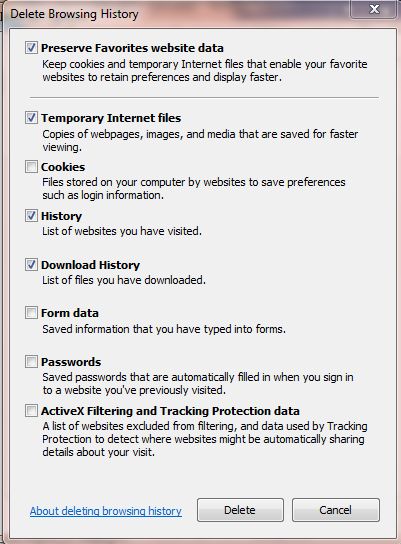
The similar ways have to be applied to stop clearing caches on IE, Chrome or Maxthon browsers, where IE calls the caches as Temporary Internet Files, Chrome and Maxthon calls it as Cache.

When using IE: Internet Option > General tab then ... Browsing History > Settings then Website Data Settings.
From Website Data Settings window you may do all the required arrangements as per your need.
  
When using Google Chrome: Just type chrome://cache in the address bar then Enter. Chrome browser reveals the list of caches as shown in the below picture.

If you really want to clear the caches on Chrome, then go Settings (type chrome://settings in the address bar or choose Settings option from Customize and control i.e., Menu bar) and choose History > Clear browsing data.
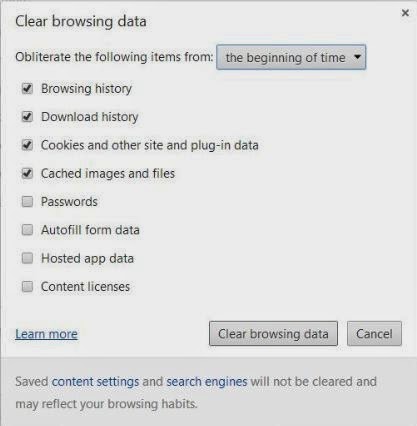
 
From Clear browsing data window, you may do all the required arrangements as per your need.

When using Maxthon: From Menu, click and open Clear browsing history. From this window you may do all the required arrangements as per your need.
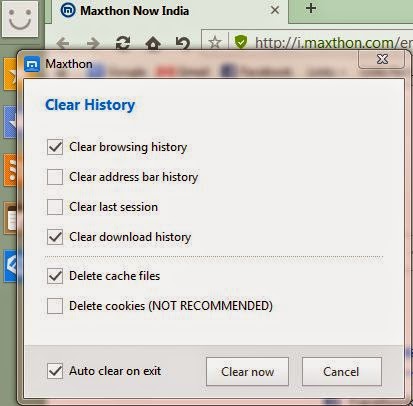
 

Suppose you've watch some sensitive websites, in a frequent manner, then its cache should have to be cleared, every time; because, other people may able to see you've been there. Rather clearing the caches every time, for the sensitive websites, just use Private Browsing Mode, which doesn't represented your cache. This feature is safe and not necessary to clear the caches, even if you visit several times. 

The features are called: 
in Firefox, Private Browsing ....

 in Chrome, Incognito Mode ....
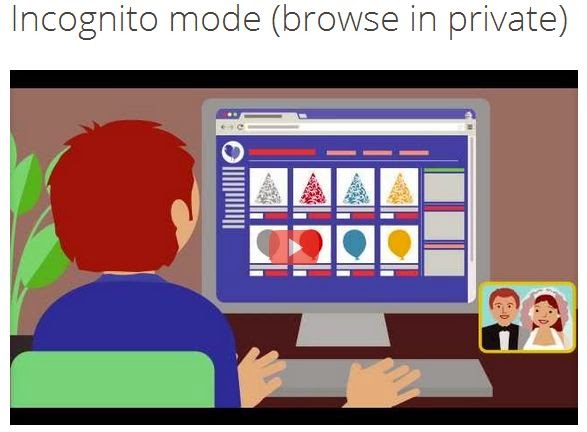
 

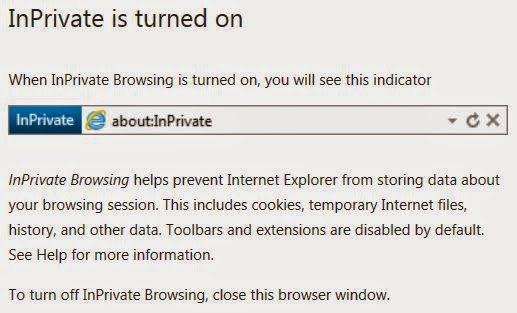
in IE, InPrivate Browsing, and
 

in Maxthon, Private Mode that can be accessed from Menu > New Window section > Private tab. When click Private tab, a New tab (for private mode) will be opened as shown in the below picture. 
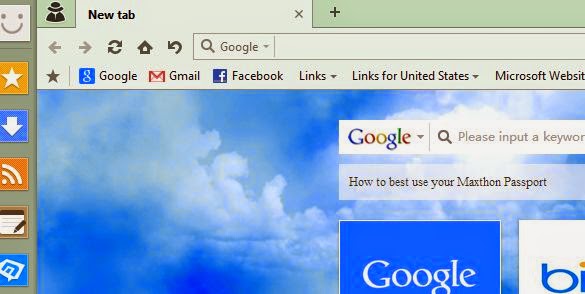
So, when browsing over these features, you'll be safe and the browser wouldn't kept the cache files, browsing history and even the data that you've accessed.

Saturday, 22 June 2013

Happy Speedy Browsing - Mozilla FIREFOX!

How to Do Mozilla Firefox Faster Again!
Have you experienced the SPEEDY FIREFOX browser slowing down or crashing? It's the reason of unwanted plug-ins, extensions, and the browsing data could do the browser speed slow or even crashing. 

Well! We'll discuss how to rectify the problems to speeding-up Firefox by disabling plug-ins, extensions and clearing browsing data.

Plug-in (or plugin) is a piece of software components, which adds specific abilities to an application and commonly used in web browsers to play video, audio, online games, presentations, scanning viruses, display new file types and more. 

Plug-in helps Firefox to manage internet contents such as Adobe Flash, Adobe Reader, Windows Media Player, Java, Quicktime, Silverlight etc., and perhaps, there were some other plug-ins also installed automatically and those were actually not required for our work. So, these type of (unwanted) plug-ins could make slowing the speed of Firefox and they can be rectified by disabling them.  

Managing plugins: Click the Firefox button and select Add-ons from the drop-down menu. (or from Menu bar > Tools > Add-ons)  
Now Add-ons Manager will open in a new tab. Click 'Plugins' from the left side of the tab. A list of installed plug-ins will be displayed. For the plugin(s) that you want to disable, click the corresponding 'Disable' button at the right.
NOTE: Plugins can only be disabled and they can not be deleted or uninstalled; but the plugin is associated with an extension, then the plugin could automatically be removed while uninstalling the extension.

After disabling, the plug-ins went gray in color and Disable button changes to Enable and it can be changed again to Disable, if required. 
Aware when disabling plug-ins such as Flash Player, QuickTime, and Java Applets etc., that were often take part in lots of web site to run the applications, videos etc.,  

As indicated earlier, plugins can not be uninstalled, manually. Most plugins, however, come with their own un-installation utilities. Visit plugins article from Firefox Help site for the information how to uninstall various common plugins. Further if you find an uninstaller program doesn't work for a particular plugin, then visit manually uninstall a plugin.
           
Extension is a programming file that serves to extend the capabilities or the data available to a basic program. It is a kind of (or list of) commands which are directly included in the program. This term often (mistakenly) coincides with plug-in. When installing software, you may be instructed to take one or more steps related to installing extensions (or these steps may automatically be done for you). 

In Firefox, extensions are doing a roll to add additional functions such as blocking advertisements, downloading videos, integrating social network sites etc., and enhancing the features of Firefox, too.

However, installing more extensions will slowing down the speed of Firefox. So, installing less (or required) extensions will keep Firefox speed normal. To speeding up Firefox, extensions should be disabled (not to be uninstalled) and later those can be enabled due to our requirements.

To disable an extension click 'Extensions' from the left side of Add-ons Manager. 
The extension is also changed to grey color when it will be disabled. And the same could also be enabled, if required. Some extensions are incompatible with the newer version of Firefox and could not be work. 

Most extensions require you to restart Firefox to be disabled. If you get a restart message, as shown in the below image, then click 'Restart now' link.


Note: Option button is not available for disabled extensions and the disabled extensions are moved to the end of the extensions list. 

If you like to remove an extension, completely, then open Add-ons Manager and search the extension that you want to remove from the list. Click the Remove button corresponding to the extension. If you get Restart message for removed extension, then click Restart now link to complete the removal process. 

Note: An extension can also be removed, when it is in disabled mode. 

Browsing Data: Firefox also keeps the tracks of sites that you've visited as files downloaded, cookies, and more. All these data were collected in the history and when the history database became larger and larger then Firefox will be slowing down or crashing. Firefox provides several methods to clear the browsing data.  

From Menu bar click History then select Clear Recent History from the drop-down menu. 

From 'Clear All History' dialog box (as pictured below), you can choose the deletion type as you wish. Select the boxes under 'Details' for the items you want to clear.
 
Note: If you choose 'Everything', a warning message will display and saying 'This action cannot be undone'.


Clear Browsing Data for a Single Website: If you like to keep browsing data for few websites, and not for others then you may choose selected data for the specific sites to clear browsing history. From Menu bar click History then select Show All History from the drop-down menu. 

The Library dialog box will display. From left pane of Library dialog box, choose the time frame (i.e.,Today, Yesterday and so on) that you visited the websites, and to clear the history. 


A list of websites, for the time you visited, will be displayed in the right pane (as shown above). Right click on the desired website in the list and select 'Forget About This Site' from the popup menu. If there will be a long list of sites, you can use 'Search History' box to find out the desired website. 

Note: Firefox doesn't provide re-confirmation message for this process while you delete the desired sites.
         

Clear Browsing Data  When Firefox Exits: To clear browsing data, automatically, when you close Firefox, from Menu bar choose Tools > Options.  

From Options dialog box, open 'Privacy' tab and select 'Use custom settings for history' under 'History' section.   

 
Now you'll be prompted for additional options as shown in the below picture.  Tick the box of 'Clear history when Firefox closes' then click 'Settings' button.  


Now 'Settings for Clearing History' dialog box will be opened; tick the boxes for the items that you want to clear when you close Firefox then click OK button. You'll be taken, again, to the 'Options' dialog box; click OK to accept your changes.

!!!HAPPY SPEEDY BROWSING!!!

Visit For CHROME: Happy Speedy Browsing - CHROME!

Sunday, 24 February 2013

How to clearing the Web History


How to clearing the Web History
Web (browsing) history refers the list of web pages, which has been visited recently, and its associated with the data like page title, time of visit etc.,

Web browser's software does this activity, as a third-party services, to record browsing history partially or completely in order to provide the user to go back the pages as he visited previously or remember where the user have been on the web. 

I'd like to dedicate (and share) this article, especially for beginners to understand how to clean the browsing history for some major browsers and enhance the speed.    

image


Internet Explorer 9 
There are different ways to clear the browsing history. 

Way 1: From Menu bar click Tools then choose Internet Options. A window will open like pictured below.       

From Browsing history area, click Delete button then another window (Delete Browsing History) will open like pictured below. 


Now, remove the tick marks from the boxes, except for History then hit the Delete button. The web history will be erased. 

Way 2: Click Settings button, then navigate to Safety and choose Delete browsing history. After this action, the same window, like in Way 1,  (Delete Browsing History) will open. Do the same procedures, as mentioned in Way 1, to clean the web history.    

A keyboard combination Ctrl+Shift+Del will also be directed you to the window of Delete Browsing History.

Chrome 
Use the wrench icon to clean browsing data as shown in the picture below. i.e., wrench icon > Tools > Clear browsing data. 

After this action you will be directed to another window like below pictured. Leave the tick mark for the box of Clear browsing history then hit Clear browsing data button.  


The same keyboard combination Ctrl+Shift+Del will took you to Clear Browsing Data window.

Firefox
From Menu bar click Tools then choose and click on Clear Recent History. A window will open as pictured below. 

Leave the tick mark, as it is, for the box of Browsing & Download History and remove the tick marks for other boxes then hit Clear Now button  to clean the browsing history.

A keyboard shortcut Ctrl+Shift+Del will also open Clear All History window. 

In fact there are several other things such as Temporary Internet Files, Download History etc., has also be cleaned for the visited browsers, which will faster the speed of related browser.  

Tuesday, 23 October 2012

Happy Speedy Browsing - CHROME!

How to Do Google Chrome Faster Again!

Have you noticed Google's SPEEDY Chrome browser slowing down or even crashing? 

The reason is some unwanted plugins or extensions and browsing history could slowing down the browser speed or making it crash. Disabling plugins, extensions and clearing browsing history  will speeding up the browser speed.

Why disabling plugins: By default, when installing Chrome browser, lot of unwanted plugins will be installed then automatically enabled, too. Plugins of Real Player, Flash, Java, Windows Media Files, Sliverlight etc., are useful for browsing. But, many of them are not so important for our daily browsing. Enabled plugins could slow Chrome's performances. Disabling some or more will enhance the browser speed.      

Remember, some plugins such as Flash, Windows media files, Java etc., should have to be enabled because many websites are associating those programs to support and display photos, videos etc.,  On other hand, keep enabling some important plugins that would be useful for our browsing experiences.

How to disabling plugins: Type about:plugins in Chrome's address bar then press enter. 


Installed plugins will be listed on the current tab. Scroll the list and find out the plugins, which actually not required, then click disable button for each to disable.


After disabling, the plugins will turn to gray, in color, on the list. Each disabled plugins can also be changed to Enable, if required.


Plugins could not be deleted or uninstalled, instead, they only be disabled. If a plugin is associated with an extension, then the plugin would be removed/deleted, when uninstalling the extension.

Extensions: are small programs that added some extra features and functions to Chrome. These extensions are useful for browsing experiences and available from Chrome's Web Store. 

Installing lot of extensions could slow the browser speed. Extensions can also easily disabled without uninstalling to gain some speed. 


Some extensions displaying their buttons, on Chrome's address bar, and they can be disabled by right click on them and choosing disable from the drop down menu.  


Apps: Installing lot of apps (Application software), which is for specific purposes, could also slow the speed of Chrome. Disabling apps, the browser speed will also be increased. 

How to access the list of installed extensions and apps: 
From tool bar, click wrench icon and choose Tools ->Extensions from the drop down menu. 

To disabling an extension, remove the tick mark from the check box then the extension icon at the left will be changed in gray color, which means the particular extension has been disabled. 

To enabling the extension, again, click on the check box to appear the tick mark. The extension icon will also be changed to its original color. 

To remove any extensions or apps, just click the trash bin icon, which appeared next to the check box.

History: is the data of browsing, which were gathered and stored in Chrome's history database. URLs, cached texts, cookies, download history, plugin data etc., will be collected and stored for the websites that have been visited. 

Caching process took effect internally for which the cache memory will speeding up the system, instead of downloading every time, while the history database become huge then the speed of Chrome will be slow. So, the browsing history should have to be cleared, in a regular interval, for a speedy browsing. 

Categories to clear browsing history: 
- Clear all browsing data (i.e., entire history) and 
- Remove selected  items.       

How to clear all browsing data: 
From tool bar, click wrench icon then choose Tools -> Clear browsing data from the drop down menu. 


A small window, Clear browsing data, will be opened. Select the items, which have to be cleaned, by click the boxes to display ticks. Select, also, time range from the drop down list. Then click the button for Clear browsing data to clean (wipe out) the selected data.   

 
How to remove selected items: 
As mentioned before, click the wrench icon from tool bar, select History from the drop down menu. The history page will be opened with all browsed sites. Move the mouse over this page and click the boxes to make tick mark for the items to be cleaned. After selecting the items, which has to be wiped out, click Remove selected items button to clear.       
     

Now, a confirmation dialog box will be displayed. Click OK to remove the selected items from the list.


Final Punch: All the browsed data could also be cleared, automatically, when Chrome exits. An extension, Click&Clean, will do this job, perfectly, and it might be useful for everyone! 

To install the extension click the link: Click&Clean then click also the button: ADD TO CHROME. 

Now a dialog box will be displayed and ask Add "Click&Clean"? (a confirmation message to install the extension). 


Click the button Add then the extension will be installed and the icon will also be shown in the tool bar. 

                                   !!!HAPPY SPEEDY BROWSING!!!