Thursday, 17 November 2016

Windows 10 - How To Open A Second Or Third Desktop Tile

Windows 10 - How To Open A Second Or Third Desktop Tile

Open a second or third desktop that avoids your screen from getting crowded with too many open windows. Opening another desktop is like having another computer screen! 
The way explained here is to stay organized in your work and reduce clutters of the screen. So, you may open the files that related to one project on one desktop then open another files related to second project on another desktop and so on. 
Following steps will guide you to open another desktop(s) on your screen.
1.     Just click over Task View button from task bar or press Windows key + Tab or swipe from the left edge of the screen. Now thumbnails for the open windows will be appeared with New Desktop button at below right of the screen and desktop tiles named as Desktop 1, Desktop 2 as well. 
2.     Note that Desktop 1 will be the first tile, where you’ve run (and kept) the applications and files, already.   If you want to open (and work on) Desktop 2 (tile), then click on it to open and work with your applications or files.     
3.      If you want to work on a new desktop then click New Desktop button. From there you can open the applications and files, again.
4.     If you want to return Desktop 1 (tile), click again on Task View button then choose Desktop 1.
5.     To close a desktop tile, just move the cursor or your finger on the desired desktop, and click or tap when the Close button appears. Closing a desktop tile means, all of its open applications or files will be moved to their original location of the system.

Tuesday, 15 November 2016

Windows 10 - Manage Your Passwords

Windows 10 - Manage Your Passwords

Passwords may be unnecessary for home using computers unless you'd like to keep someone else in your house out of your business! Laptop users should always create a password that should be harder and not easy for a thief. 
Windows 10 offers two type of passwords, if you prefer not to enter a password when turn on your computer and you can start Windows 10 with entering a password.

 The two types of passwords are:  
  • Microsoft Account Password: This type of password is to secure your computer plus enjoy the  advantages of Windows 10 features - like Apps from Microsoft Store, OneDrive for online storage and sync (settings) between computers.
  • Local Passwords: This type is normal, which also secures your computer against unwanted entry.  
How to handle Passwords (Windows 10):
From Start screen ... select your name, then choose Change account settings from the drop-down menu. The Accounts screen will be opened, and from here you can manage password options.


  • How to change your local account to a Microsoft Account: From Your Info screen, click Sign in with a Microsoft Account instead. Now from the following screen enter e mail address and password for your Microsoft Account then click Sign in button. From the following screen, enter your current Windows password and select the Next button.
  • How to convert your Microsoft Account to a Local Account: From your Account screen, select Sign in with a local account instead. As security reason, you may asked to enter your Microsoft Account password and Windows 10 may ask you to verify your identity, to Microsoft, by submitting a security code. Now enter your e mail address and click Next. Go to your e mail and get the security code then enter it in the Enter the code screen. Now Switch to a local account screen will appear. Negotiate the screens then enter your user name, password (twice) and password hint for your local account.
  • How to start Windows 10 without entering a password: From the Accounts screen, click Sign-in options. Under Password, select Change button. Now Change your password screen will appear. Enter your password and select Next. In the following screen, leave all boxes as blank and select Next then select Finish.

How To Identify If Your Room-mate Is Using Your Computer

How To Identify If Your Room-mate Is Using Your Computer


Room-mates, they eat your food, wear your cloths, and snore really loudly! Sometimes, opportunities allow them to use your computer when you’re not around. If you suspect that your laptop or desktop being used by him, and you probably have a password for your lock screen but you’ve some reason to trust him who has guessed your password or somehow circumvented it in the recent past. Now it’s the time to start changing the password regularly! (And make it stronger). 

This article will explain you ‘how to sleuth-out trespassing room-mates, parents and even pesky little sisters’. 

Check your logs:
Almost every personal computer keeps a log event, a literally list, of every action that you’ve performed with time-stamped. So, you can see when each action occurred. The easiest way, to catch a suspected unauthorized user, is to put your computer in “sleep” when you leave, then check “wake” log events when you get back. 


This means, if the computer was woken-up during your absent, then you may see the extra/other activity too. Just study the logs and see if any extra activity occurred or not. Just think back to the time when you weren’t at your computer then see the logged events for the absent time, and make confirm that somebody is using your machine.

For Windows users, open the Event Viewer. Look for the Windows Log menu item on the right. Right click on Systems, and you’ll see all activity on your computer.
For Mac users, look for the Console App, which you can use to view your logs. When it opens, you’ll see “All Messages,” and you scroll up to go back in time. 

Check Your Browser History:
Smart people, in fact, delete their history, when they browse something in a web browser. But your room-mate may not be smart or maybe he’s smart enough to delete his digital bread-crumbs, and not smart enough to selectively delete them—so instead of just deleting his activity for the last hour, he deletes everything that includes all your past activities! So, no records will be showing to identify the dirty one. If there’s no suspicious browser activity, it doesn’t absolve your suspect. They could just be savvy enough to either delete only their own activity or use a private browser session. In this case, try setting up OpenDNS, a web service, which is free for personal use and it logs every web URL visited from your home network.

Software Solutions:
If your roommate is smart enough, they will get past all of those logs. But if you want to catch somebody in the act, you can leave your password unchanged and set a trap for them. The App Prey can help you to catch them and this software can track multiple devices, including Macs, Windows PCs, Android phones, and iOS devices. The software can tell where the device is located, lock the screen, send alert messages and even take a snap of the person using your device. There’s a free version, but other versions with more robust features cost money. You can also check out Keylogger Apps, which will capture any keys that are pressed on your keyboard. Try Revealer Keylogger for Windows or Elite Keylogger for Macs.

Cameras Won’t Lie:
Another option is a secret web-cam, if you dare to be extreme! In markets, more popular indoor security cam is available and they allow you to view a live-stream, even on your phone. When installing it, don’t place it anywhere near your computer—that would be too obvious. Hide it within a crowded bookshelf, inside a stuffed animal, or somewhere creative.

Monday, 14 November 2016

Windows 10 – Event Viewer

Windows 10 – Event Viewer 


Every user of Windows-10 needs to know about Event Viewer. In fact, Windows has an Event Viewer for almost a decade. Few people know about it. At its heart, the Event Viewer looks at a small handful of logs that Windows maintains on your PC. The logs are simple text files, written in XML format.
Windows having many Event Log files: Administrative, Operational, Analytic, and Debug, plus application log files.
Every program that starts on your PC posts a notification in an Event Log, and every well-behaved program posts a notification before it stops. Every system access, security change, operating system twitch, hardware failure, and driver hiccup all end up in one or another Event Log. The Event Viewer scans those text log files, aggregates them, and puts a pretty interface on a deathly dull, voluminous set of machine-generated data. Event Viewer is a database reporting program, where the underlying database is just a handful of simple flat text files.
Here’s how to use the Event Viewer: 
1. Right-click (or tap and hold) the Start icon. Choose Event Viewer.  

2. The Event Viewer appears.
3. On the left, click Event Viewer > Custom Views > Administrative Events. 
It may take a while, but eventually you see a list of notable events like the one shown. 
Don’t panic for its abnormal indications. Even the best-kept system boasts reams of scary-looking error messages — hundreds, if not thousands of them. That’s normal. 
See the table for a breakdown.
Events and What They Mean
Event
What Caused the Event
Error
Significant problem, possibly including loss of data
Warning
Not necessarily significant, but might indicate that there’s a
problem brewing
Information
Just a program calling home to say it’s okay

The Administrative Events log isn’t the only one you can see; it’s a distillation of the other event logs, with an emphasis on the kinds of things a mere human might want to see.
Other logs include the following:
  • Application events: Programs report on their problems.
  • Security events: They’re called “audits” and show the results of a security action. Results can be either successful or failed depending on the event, such as when a user tries to log on.
  • Setup events: This primarily refers to domain controllers, which is something you don’t need to worry about.
  • System events: Most of the errors and warnings you see in the Administrative Events log come from system events. They’re reports from Windows system files about problems they’ve encountered. Almost all of them are self-healing.
  • Forwarded events: These are sent to this computer from other computers.

Wednesday, 9 November 2016

Pocket - Overview

Pocket - Overview


Pocket (previously known as ‘Read It Later’) is an interesting and amazing App, founded in 2007 by Nate Weiner, to help people save articles, videos and more from the web for later enjoyment. 

Once saved to Pocket, the list of content is visible on any device — phone, tablet or computer. It can be viewed while you’re waiting in line, on the couch, during commutes or travel — even offline. 

It is one of the leading (save for later reading) service, in tech world, which has more than 22 millions of registered users, and integrated into more than 1500 Apps including Flipboard, Twitter and Zite. 

It is available for major devices and platforms such as Windows, Edge, Chrome, Firefox, Safari, Opera, Android, Mac, iPhone, iPad, Kindle Fire, and Kobo. 

So, it’s easy to access to read, even offline, from any device after saving on Pocket.


No matter! What device are you using?

Just click the each link to know more about Pocket!

· Desktop or Laptop computer

· iPhone or iPad

· Android or Kindle Fire device

You can download the App from here: Pocket

Saturday, 10 September 2016

How To Protect Yourself If Anyone See Your Entire Google Search History

How To Protect Yourself If Anyone See Your Entire Google Search History

Every single search that you’ve ever made on Google and every page you’ve ever visited has also been stored in Google’s Servers. Did you think that the option: “Clear Browser History”, will be wiped out any evidence of you being on the web? Then note again, all those buttons does is to clear the data from your system – not Google’s.

How to see your entire Google search history: 
The entire history of your Googled content is there and anyone can see, if they know ‘where to look’. If you’re using a shared machine, learn how to disable this alarming functionality and keep your searches private. You still can’t stop Google from gathering that information but you can definitely protect your local system from prying eyes. Finding these data is the simplest of tasks. 

On your browser, click on the three vertical bars at the right of your address bar and select “History –> History”. You can go back as far as you like and see what you’ve been searching for ever since you first signed into your Google account on that machine.

Alternatively, visit this URL: http://history.google.com/history, from your machine, which is great if you want to remember something you searched in the past – but couldn’t find later, or if you just have a half day to waste going through a list that might just make you go - “huh, when did I search for that!” 
But remember it’s not so great, if someone else is using your PC, laptop, tablet or even smartphone. And the problem is exacerbated by the fact that Google can sync (on your command, of course) your browser data with any device that you’ve signed into your Google account on. 

How to delete your browsing history: 
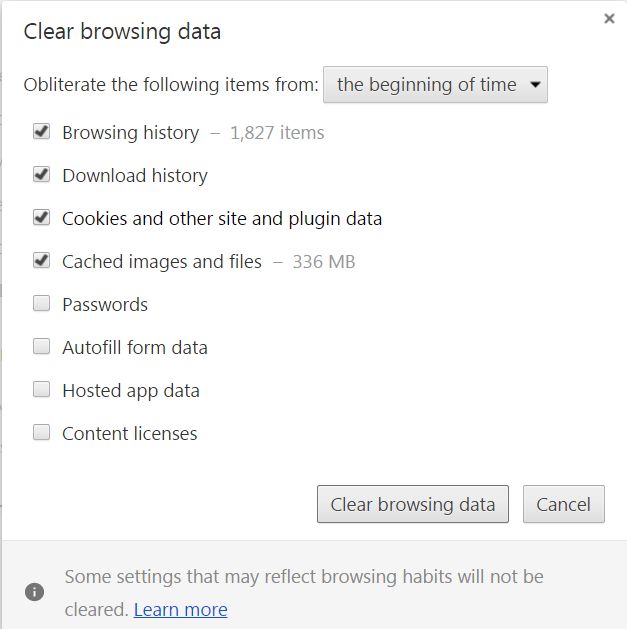
So what do you do if you want to delete everything? That’s also very simple. Just go to Settings, click on the Advanced Settings link at the bottom, scroll down to Privacy and click on Clear Browsing Data. When you get the pop-up window, select everything you want to erase and the timeline you want erased and hit the Clear Browsing Data button in the pop-up.

In a flash, it’s gone - only from that device. If your data may synced with other devices where you’re signed in to the same account, then be sure to check all those devices to see, whether the history deletion has indeed taken effect or not.

Safeguard Future Searches:
Follow these steps to prevent your future activities from being tracked:  
Again, go to Settings, click on the Advanced Settings link and go to Privacy, but this time click on the Content Settings button. 
Within Content Settings, select everything you want to block, create exceptions to the rule if required, and click Done when you’re finished.


Similar settings are also available on other versions of popular browsers including  Internet Explorer, Mozilla Firefox, Safari, Opera and UC Browser.


A Warning:
Your Internet Service Provider (ISP), browser provider and many of the other sites you use have every capability to track your activity on the internet despite what your settings tell you. Even you use, for example, Incognito on Chrome and think you’re safe, but you’re not 100% protected from everyone.

To prevent websites from tracking your activity on the internet, you can use a service such as disconnect me or use any premium Virtual Private Network service for a few bucks a month. But be warned that your data is never 100% safe. And keep in mind that large companies spent billions of dollars each year over cyber security.

A complete insulated environment is impossible to achieve unless you’re completely unplugged from the internet – an impractical situation at best. The next, best thing is to be aware of the risks and protect yourself from the most obvious security breaches.

These settings and tools are there to protect your system from local snoopers – not necessary the ones online that start getting your data the moment you log in. So be aware of this lack of privacy when using the internet and behave accordingly.

Thursday, 8 September 2016

Three Types Of App: Keep Your Services In One Convenient Place To Make Your Life Easier

Three Types Of App: Keep Your Services In One Convenient Place To Make Your Life Easier

Using some Apps, which keep all your services – between FB messenger, WhatsApp, SKYPE and every other social media or chat – in one convenient place to track them and make life easier for you!

Here we are showing you three type of Apps, which are popular in services and come along with FB messenger, WhatsApp, SKYPE and many more.
 
1. All-in-On
e Messenger It’s for Chrome users and can be downloaded from their web store. Once you installed this application, on your system, which combines chat and messaging services into one simple way. It has 29 services and you can choose them as you want to authorize then enable desktop notifications.

Each service stays in its own tab and possible to use multiple accounts at the same time. It also has the nice benefit to prevent cross-domain tracking where you’ve to be logged-in with the main browser.
This is practically useful for those who always sitting on their desktop or laptop.
 
2. Franz It’s a desktop messaging App, which combines chat and messaging services into one application. It supports many services such as WhatsApp, FB messenger, Telegram, SKYPE, Slack, Google Hangout etc., It can be downloaded on your desktop and available for Windows, Mac and Linux.

It looks similar to All-in-one messenger and works the same way as of All-in-one messenger. 
Each of its service can be viewable on its own tab and you can see your contact list too. It allows you to enable or disable the notifications for each service.

3. Rambox It’s a desktop App for messaging and e- mailing that gives a new way to organize your services, especially to the people who work with many services for business and private. This App is available for Windows, Mac and Linux. 
It supports 48 services, while it looks somewhat different from All-in-one and Franz, but has the same tabbed layout with the ability to enable desktop notifications.
It gives users more choices, such as: add custom services, sync services, locking and etc., in a natural way to anyone, who is on a busy life.