Monday, 26 May 2014

What's Cache File? Is It Make Your Browsing Faster?

What's Cache File? Is It Make Your Browsing Faster?  

Caching is a storage mechanism for web documents, such as HTML pages and images, to reduce the usage of  bandwidth, server load, and perceived lag.  

Browser creates cache for some reason and caches are not the browsing history but it contains copy of images, Java Script files and etc., for the visited websites and stored on hard drives. The cache is a place where the browser stores copies of these files, and it doesn’t have to be downloaded again when you visit the same web page, next time. When revisiting the same websites, the caches will be retrieved from hard drive(s) and speeding up the browser to open the web page and saving download bandwidth as well.
So, browser caches are good for our browsing experiences and if you erase the caches, regularly, then the system just slowing down your web browsing while the browser rebuilds the caches, again. Browsers also limit the amount of data that stored in cache; so, the browser will automatically purge the old data and keep the cache size in control and every browser has it's own cache files.

As mentioned earlier that the cache took some hard disk space and when you use a tool to clean some data like history, then the tool could able to remove the browser caches, too. So, when using such a tool, for example: CCleaner, you should have to un-check Cache option to prevent from clearing the browser's cache. If you're using CCleaner or a similar tool to wipe-out some unwanted files, left by certain programs, then keep in mind to un-check the option of Cache; so, the tool remembers your preferred setting in the future.

However, when using FireFox browser, you can erase browsing and download history, cookies and even other data without erasing caches. You've to remove tick mark from cache box, then caches wouldn't be erased. And you may also erase the browsing and download history, cookies and even caches for only a small period of time, like past hour. This will helpful, when you're using other peoples system for an hour or more, which wipes away the tracks of your browsing without clearing the entire caches. 

To get this option: History > Clear Recent History .... then choose your appropriate option from Time range to clear.

The similar ways have to be applied to stop clearing caches on IE, Chrome or Maxthon browsers, where IE calls the caches as Temporary Internet Files, Chrome and Maxthon calls it as Cache.

When using IE: Internet Option > General tab then ... Browsing History > Settings then Website Data Settings.
From Website Data Settings window you may do all the required arrangements as per your need.
  
When using Google Chrome: Just type chrome://cache in the address bar then Enter. Chrome browser reveals the list of caches as shown in the below picture.

If you really want to clear the caches on Chrome, then go Settings (type chrome://settings in the address bar or choose Settings option from Customize and control i.e., Menu bar) and choose History > Clear browsing data.
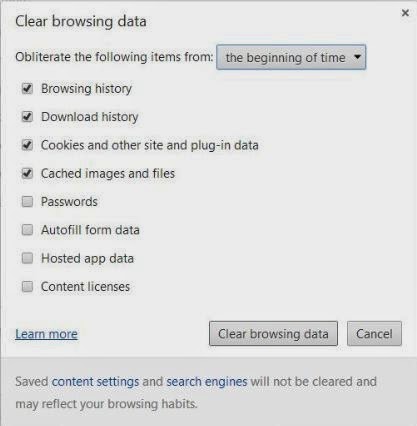
 
From Clear browsing data window, you may do all the required arrangements as per your need.

When using Maxthon: From Menu, click and open Clear browsing history. From this window you may do all the required arrangements as per your need.
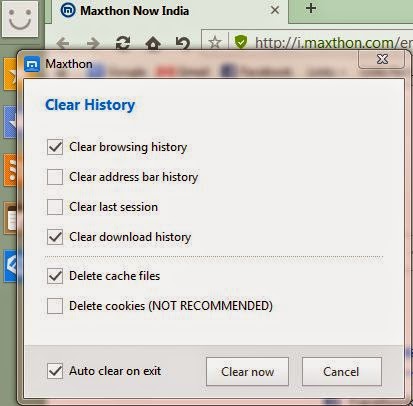
 

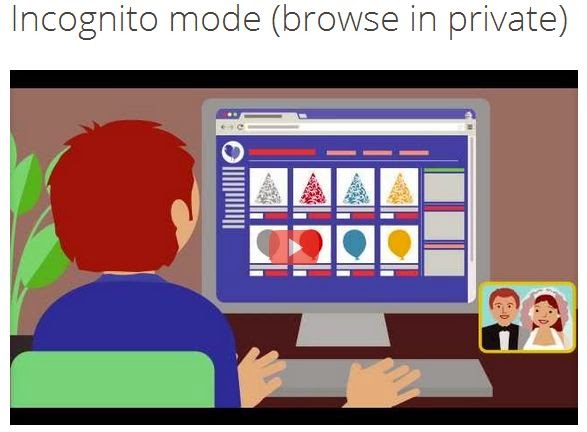
Suppose you've watch some sensitive websites, in a frequent manner, then its cache should have to be cleared, every time; because, other people may able to see you've been there. Rather clearing the caches every time, for the sensitive websites, just use Private Browsing Mode, which doesn't represented your cache. This feature is safe and not necessary to clear the caches, even if you visit several times. 

The features are called: 
in Firefox, Private Browsing ....

 in Chrome, Incognito Mode ....
 

in IE, InPrivate Browsing, and
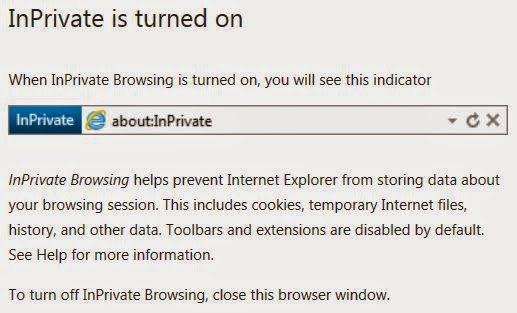
 

in Maxthon, Private Mode that can be accessed from Menu > New Window section > Private tab. When click Private tab, a New tab (for private mode) will be opened as shown in the below picture. 
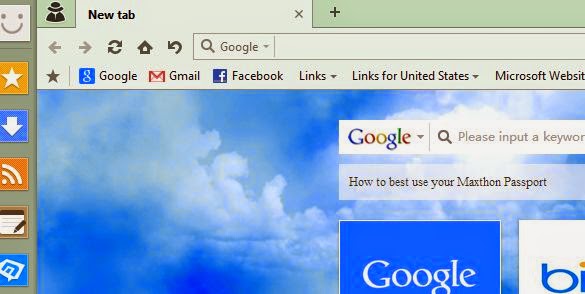
So, when browsing over these features, you'll be safe and the browser wouldn't kept the cache files, browsing history and even the data that you've accessed.

Wednesday, 14 May 2014

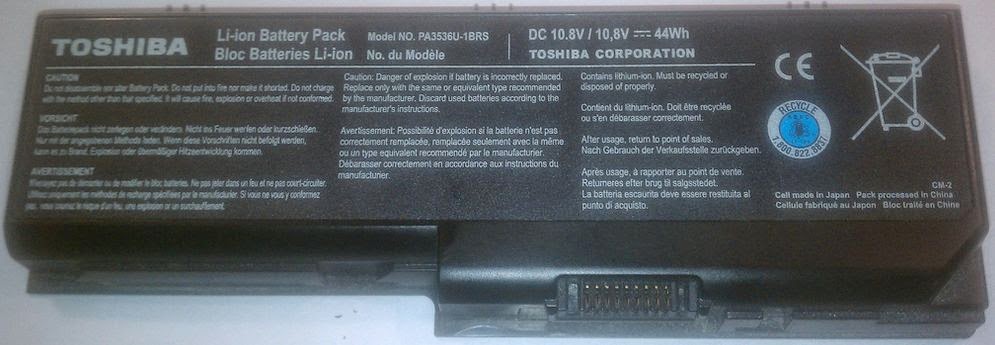
Windows Laptops: Tips To Increase Battery-Life

Windows Laptops: Tips To Increase Battery-Life 

Most laptops still doesn't has all-day battery life and here we discuss some ways to squeeze the life of your Windows laptop's battery. The ways wouldn't turn your laptop much stamina to work all day; but they may help without an outlet for a while longer.
1. Reduce Screen Brightness
2. Auto Turn-Off the Display
3. Disable Bluetooth, Wi-Fi and other Hardware Devices
4. Adjust the Power Plan
5. Use Windows Power Trouble-shooter
6. Hibernate the system
 
1. Reduce Screen Brightness: Without doubt, the brightness of screen is the biggest battery drain, whether your device is a laptop, smartphone or tablet. So, reducing screen's brightness is a good way to squeeze little bit more time for battery. Lowering brightness level will enhance battery power longer. To do this press and hold the Function (Fn) key, then press the brightness button on laptop keyboard. And you can also use Windows Mobility Center, from laptop, to adjust screen's brightness; open Windows Mobility Center by pressing Windows Key + X, for Windows 7 and for Windows 8, just launch it from Control Panel (Windows Key + X, opens power user menu).        

2. Auto Turn-Off the Display: If you're going away from laptop for a few minutes or more, then its screen will still be on, which draining the power. So, setting-up laptop's aggressive power settings to dim then turn-off the display, automatically, is a good choice to save battery power, when the laptop is not in use. To enable this option open Power Options dialog from Control Panel then set the display to dim and adjust to turn-off after a short period of time. This is also an easy way to save the power and when moving the mouse or pressing any key the display will be turned back. For media players, set the display to automatically stay on, while they're running.   

3. Disable Bluetooth, Wi-Fi and other Hardware Devices: Bluetooth radio and the laptop even having some devices such as infrared (IR) port are, also, drain the battery power when they're enabled / powered-on. So, they should have to be disabled to save some battery power when they're not in use. To disable Bluetooth, press Function Key (Fn) then press the key, which has Bluetooth symbol on laptop. 

Disabling Wi-Fi is also a good way to save battery power, when you're not using Wi-Fi. Wi-Fi can be turned-off the similar way of using Function Key or disable the adapter of Wi-Fi from Control Panel's network connection window. 

Bluetooth and Wi-Fi could able to identified, whether they're on/off, through the indicators of your laptop.

4. Adjust the Power Plan: Windows offers power plans and through them you can change laptop's power settings to different profiles. If you need every bit of power to be saved then your laptop should be switched to Power Saver mode. Balanced is the default mode, which balances power consumptions on hardware. Power Plan settings can be modified easily and they're hidden in Control Panel's Power Options window.
To modify Advanced power options, click Change plan settings link and choose Change Advanced power settings. Now Power Options window will open and you can change a variety of settings such as power off the hard-drive and even slow down the processor speed rather turning the fan to on, if the processor gets hot. Both of these activities may save power, too.

5. Use Windows Power Trouble-shooter: A tool, Troubleshooting, is included in Windows 7 and 8, through which scan your system for common battery drains and fix them, automatically. To load the tool, Control Panel > Troubleshooting then perform a search for Troubleshooting. 

To launch Power troubleshooter: Troubleshooting > All Categories > Power.

Windows will search for common issues then fix them, automatically. 
It's a technique used to discover the optimal solution to certain problems on Windows laptops. 

6. Hibernate the system: Hibernation is an option, which is similar to sleep mode but saves more power. If you're not going to be using the laptop for a few hours, then switch it into hibernate mode, rather than sleep mode, to conserve more battery power. Hibernate makes the hardware to powered-off, but not like a regular shutdown. A tiny amount of power will be drawn from power supply to keep CMOS to be powered.   

 Here's few general ideas to prevent battery from draining faster:
  • Do not use screensavers, as they're unnecessary and not useful. They will drain the battery. 
  • Run fewer programs at the background. Just check the system tray for the programs that were running and disable them to prevent as they're automatically running, when the system starts. 
  • Reduce CPU usage. Using heavy programs may cause the CPU to work a lot and CPU will take more power then the battery will drain faster. 
  • Avoid maxing-out of RAM. When RAM reaches its limitations, then it became heavier and looks for more memory to write the data. So, RAM moves the data to the page-file on system's hard drive, and hard drive's usage will be increased, which may drain the battery, too. This solution is not a problem on modern laptops, as they're coming with excellent capacity of RAM. If your laptop's RAM became full, then try to close some unwanted running programs, which will free-up the RAM or upgrade the RAM. 
Windows Task Manager's Performance tab will reveal more info about the usage of CPU and RAM. 

So, the less your computer has to do; the more power it can save.

Saturday, 26 April 2014

How To Reduce Data Usage When Browsing Web On Smartphone

How To Reduce Data Usage When Browsing Web On Smartphone

If you've limited data subscription on your Android / iPhone, then every megabyte will be counted and billed. Some browsers, such as Chrome and Opera, supporting data compression features, which allowing to browse less data on your phones. 

When loading a web page on your smartphone, the browser will directly connecting the website's web server then the server sends the web page. Your cellular provider just sits in the middle and passing the traffic forth and back then charging for it.
If you wish to get some advantage then enable data compression feature on your phone, which allows to browse all the websites with some noticeable differences, and you may feel, too. When you load a web page, the browser of your phone will, usually, send a request to it's server then the server accept the request to download the web page, which you wanted to view, with images and other assets as well. 

After enabling data compression feature, on your phone, the server compresses the web page, i.e., making less space, then send it to your phone with transcoded images as they're smaller without high resolutions and this function will also be good to reduce your phone's data usage, as well.

To enable data compression feature on Chrome, just tap Chrome App from Android, iPhone or iPad and select Settings. Scroll to Advanced then tap Bandwidth management. Tap Reduce data usage then set the slider from OFF to ON.
After enabling the feature to on, then browse for a while and head to the same Reduce data usage page, to view how much of data has been saved. Through this you may get the worth of the feature.   


To enable Opera's data compression mode on Android / iOS, tap Opera menu button then set Off Road mode's (previously called as Turbo) slider to On. This mode can be easily disabled and enabled as your choice of using Wi-Fi, and mobile data. Through Opera's Settings page, you may also adjust to lower the image quality, which allows to save bandwidth for images.   
After enabling the mode, you can view how much of data has been saved. Through this you may get the worth of this mode, like Chrome.


The performances for a faster data connection may take little bit longer to load web pages; because, the connection is not direct and looks for proxy. And for a slower data connection the web page may download even faster, if the phone has less data to download. 

Further, you've to know some privacy concerns of Google and Opera. Both able to watch your activities such as the web pages you're accessing. Your Cellular Carrier, Internet Service Provider (ISP) and various security agencies around the world would also able to watch what web pages you're visiting. 

When using Chrome or Opera, the history will also be synchronized on their servers and if accessing secured websites, such as of banks with encrypted HTTPS, wouldn't allow to get benefits for less data usage, because your sensitive data is not routed via proxy but you've stayed on secured connection.         

Friday, 4 April 2014

Browser Extensions: Are They Really Slowing Down Your Browser Speed?

Browser Extensions: Are They Really Slowing Down Your Browser Speed?

Browser extension is a computer program that extends the functionality of a web browser and also improves the user interface, which can be achieved through a variety of add-ons such as toolbars and plug-ins. 

So, browser extensions are useful and not like other software that remains running on your computer; but you should have to use limited browser extensions, which required for work, otherwise your browser will be slow down. Using fewer lightweight extensions should not be resulted in a noticeable difference on modern computers, but keep adding more and more then they can increase browser's memory consumption, take longer time to open the browser and finally your browser will be slowing down. And if you use 2 or more browsers then each browser offers its own way to pin down memory consumption, CPU usage and start-up delay. You can identify the exact information of impact that the browser's extensions has on your system. 

Google Chrome is a multi-process browser, which supporting plenty of extensions and running their own way. 
Through Chrome's integrated Task Manager, you can view the memory consumptions, current CPU usage for the running browser extensions and this process will give an idea that how each extensions took memory consumption. To open Task Manager, click Chrome's Menu button, choose Tools then select Task Manager. Task Manager also displays the resources of installed Web Apps including other background processes. 

Internet Explorer does not exposing the memory consumption for browser's Add-on. However, it gives the information about how long each browser's Add-on took to load. If the browser's Add-on takes longer to load then assume that it consuming more memory as well as slowing things down. 

To get this info click the Gear icon and select Manage Add-ons. Now a window will open and you'll see each browser's extension load time that were listed under Load Time column. 
To prevent an add-on from loading, just choose it from the list and click Disable button. There's also Navigation Time column, where you can find the delays of time to the related Add-on that you Navigate/Load a new web page. 

Mozilla Firefox is also doesn't offer an easy way to get memory usage for browser's extension. However, you should have to install an extension, about:addons-memory extension, which will display the memory usage. After installing the extension, just type about:addons-memory in the address bar and enter to open addons-memory page.
The installed extension(s) will be displayed and sorted by how much memory they're consuming. Through this, you may concluded the memory usage for each add-on. You may also get memory benefits from Tools > Add-ons by disable/remove the unwanted add-ons.  

Above said process of system resources to a particular browser's extension wouldn't give a clear picture. But open the browser in Safe Mode will load the web pages without any extensions and the browser itself speedier in this mode.

To launch Chrome in Safe Mode, right click Chrome Icon from Task Bar and right click Google Chrome in the list then choose Properties. 
Now Chrome's Property window will open. From Shortcut tab, add -disable-extensions at the end of the script of Target box {i.e., C:\Users\DELL\AppData\Local\Google\Chrome\Application\chrome.exe-disable-extensions} and click OK.
Close all the running Chrome, including the Icon that may running on system tray. Use the shortcut and relaunch Chrome. To disable safe mode, just remove the words that you've entered and click OK then restart Chrome.

For Internet Explorer If you use Windows 7, click Start button and launch All Programs > Accessories > System Tools > Internet Explorer (No Add-ons) shortcut. If you use Windows 8, you’ve to launch this program manually by pressing Windows Key + R to open the run dialog box and type iexplore.exe -extoff  into it, then press Enter.
     
Mozilla Firefox: Click Help, and select Restart with Add-ons Disabled.

So, Safe Mode browsing, without extensions, will determine system resources with loading the web pages speedier and you may noticed that how the performances are improving when pin-down the Add-ons.

Monday, 31 March 2014

Registry Cleaner: Is Really Speed-Up The PC Or Fix Crashes?

Registry Cleaner: Is Really Speed-Up The PC Or Fix Crashes? 

The Windows Registry is a hierarchical database, which stores configuration settings and options on Microsoft Windows OS. The kernel, device drivers, services, Security Accounts Manager, user interface and third party applications could able to make use of the registry. So, Windows Registry is a huge database for settings, which is not for Windows only and included the programs you installed. 
 
When installing a program, the program's settings will be saved on Windows Registry. If the program is registered as a default program for certain file types, then Windows will save a registry entry and remembers, it's a default program. For any reason, if you like to uninstall the program, then the program will be uninstalled but program's registry entries will be stayed on Windows Registry until you've to reinstall Windows or cleaned them using a registry cleaner / delete them manually. 

A registry cleaner will perform a scan on your system's registry entries, which appeared outdated and removed them. The registry cleaner companies make you to trust that their products would result a big performance and the system gets some incredible improvement on speed. In fact, registry cleaners would not speed up the PC, instead they may cause problems by removing registry entries. 
They often make false promises such as fixing registry errors and system crashes, system's registry has full of junks and even they repair blue-screens and so on. If your Windows PC crashes or blue screening then nothing to worry about registry and the registry, itself, is corrupted then it may corrected by using System Restore, at least.  
The registry is a massive database, where hundreds of thousands of entries gathered and individual entries are fairly tiny. The Windows registry has also become more robust nowadays, evolved from Windows 95 till Windows 7 and 8.  If the system is hideously slow or crashing frequently, then it may have other problems than a full registry and you've to refreshing the PC or reinstalling Windows.
Many registry cleaner distributors recommend to run their product once in a week; but an average registry cleaner may cause problems than it fixes, if run on a regular basis. 

So, forget the registry cleaners; make your life with basic care of your Windows computer and you don't have to worry about the registry.

Thursday, 20 March 2014

Run Android And Make Your PC Dual OS

Run Android And Make Your PC Dual OS

Intel is now interesting to support Dual Operating System on PCs and other devices with Windows 8 and Android as well. You could able to run Android Apps and even Android OS on your current PC, which allows to use Android's ecosystem of touch based Apps for touch enabled Windows Laptops and Tablets. 
So, if you wish to run Android Apps on your Windows PC, you should have to install BlueStacks, a multi-OS with virtualization technology, where Apps developed for different OS and executable on the same computer. It doesn't replace your entire OS instead runs Android Apps within a window on Windows desktop. It supports multiple OS with user interface is fully configurable and the installation for Apps can be get from Google Play. Some similar applications like youwave, windroy are also work good but BlueStacks is better and stable for running Android Apps on Windows.
There will be a number of developers in Android community to experimenting Android OS. Few of them are: Android On Intel Architecture, Android-X86 and AndroidSDK 

Android On Intel Architecture (or Android IA) is Intel's own distribution for Android to their new Intel based PCs with UEFI firmware. This project is not stable and presently supporting some selected devices such as ACER Iconia W700, Lenovo X220T and X230T and Samsung XE700T.  For further info check Quick Start and Devices pages.
                                                
Android-X86 is Google's Android Mobile OS to run on devices powered by AMD and Intel-X86 processors, which allowing to install Android on a laptop or tablet. 
Certain platforms, such as  ASUS Eee PCs/Laptops, Viewsonic Viewpad 10, Dell Inspiron Mini Duo, Samsung Q1U, Viliv S5 and Lenovo ThinkPad x61 Tablet, are officially tested at this time.
 
Bear in mind that this project is also not stable and needs extra caution when installing it on physical hardware.  

AndroidSDK is Google's official Android emulator, which designed for developers to build, test and debug their Android Apps. You can use it to run Android OS in a window on your existing system. It is useful to test Android's latest versions of Apps and it is rather slow and not a good choice for everyday use. 
 
To get Android Emulator, download Google’s Android SDK, open SDK Manager program, and select Tools > Manage AVDs. Click New button and create Android Virtual Device (AVD) with your desired configuration, then select it and click Start button to launch it. 

BlueStacks is the best choice to run Android apps on your Windows computer, and it is the easiest, slickest, most stable option.

Sunday, 16 March 2014

Android: A Beginner Guide

Android: A Beginner Guide
Android is an operating system, based on Linux kernel, and designed for touchscreen mobile devices such as smartphones and tablet computers. Initially developed by Android, Inc., which Google backed financially and later bought in 2005. Middle of  2012, Android became the most popular mobile OS, having the largest installed base, and is a market leader in most countries.
Android is easy to use than Windows desktops! And lots more in Android to learn; but this article hopefully get started without overwhelming you, much!! 

So, if you're using an Android phone or planning to buy, then you should have to know some important advantages and this article helps you to understand and adapt a life with an Android. 
Android is Google's operating system and at least one Google account is linked with this OS. So, when you turned on your Android device, the first time, you'll be asked to enter your Google account details or create a Google account, if you don't have one. This is technical option from Google account, which will be used to back-up your phone's settings, keep tracks the installed Apps with their links such as G mail, Calendar, Contacts, Google+ and etc., However, if you're not enter Google account credentials, while setting up, then you can add the account later from Android's settings page.
Android phones has more features in common like computers and they can be used for web browsing, e mail, playing games, streaming videos, editing photos, writing office documents and much more. 

By default the Apps for phone and messaging were appeared at bottom of the phone's dock area; so, you may use these Apps to place a call and send / receive text messages. 
When turn on your Android device, you'll see the lock screen, where you can configure a code, pattern or password; so, no one can use your phone. After unlock the phone, you'll see the home screen, where you can keep icons for your favorite Apps and add widgets. If you're using G mail, frequently, then you can add G mail widget on your home screen, which enables to view your inbox without opening any Apps. And if you use other Apps, frequently, then you can also place their icons on home screen. 

To open the App drawer, tap the small squared buttons at the bottom of the home screen. The App drawer has the list of all Apps, which has been installed on your Android phone, and they can be viewed by swipe over the screen. To place an App on your home screen, long-press the App and drag it wherever you like to place.  
Depending on the model of Android phone, you can control the phone by tapping the buttons at the bottom of the screen. There's a home button, which instantly takes back to the home screen and a back button will take you back anywhere. You may also have a multi-task button to switch between open windows or menu button to open an Apps menu. If the phone doesn't has the multi-task button, then you've to double-tap or long-press the home button to bring-up the App to switch. This option will vary from phone to phone. 

Configuring an Android phone is easy and the configuration settings can be accessed from Settings App. Open the App drawer and tap Settings icon. After tapping on Settings icon, you can see plenty of options, through which you can configure the phone. You can also see the Settings icon at the right side of notification drawer by pull-down the drawer. Notifications can be accessed by pulling-down notification drawer with your finger and tap a notification to interact with or swipe a notification to the left / right to get rid of it. 
Installing Apps is also easy by opening Play Store App, either tapping on Play Store shortcut or tapping the shopping bag icon at the top-right corner of your App drawer. You can easily search the required Apps and install them on your phone. Search option is also performed by tap the widget of Google search box, which located at the top of your home screen. You can also use voice commands to search and perform actions without typing. 

The screenshots, using on this post, are probably look different to the devices, which you held.